
Use a support ticket investigation’s report to prepare a message for the person who needs the result. Choose the audience, check the evidence, and copy the draft into Jira or the tool where you will send it.
Request a draft
Open your investigation and its Investigation report panel. Choose a draft type from the Draft menu at the top of the panel, or use the matching buttons below the conversation. Either shortcut sends a request to Driver to generate a draft from the current report:
| Draft | What it should communicate |
|---|---|
| Internal note | The technical finding, supporting evidence, and unresolved questions for the ticket’s internal discussion. |
| Engineering handoff | The symptom, environment, reproduction, likely cause, relevant code, and the checks engineering should perform. |
| Customer reply | A clear explanation, workaround or next step, and any information you still need from the customer. |
When Driver finishes generating the draft, it appears in a named tab beside Report. Ask Driver for a revision in the conversation if the draft needs a different level of detail or a correction.
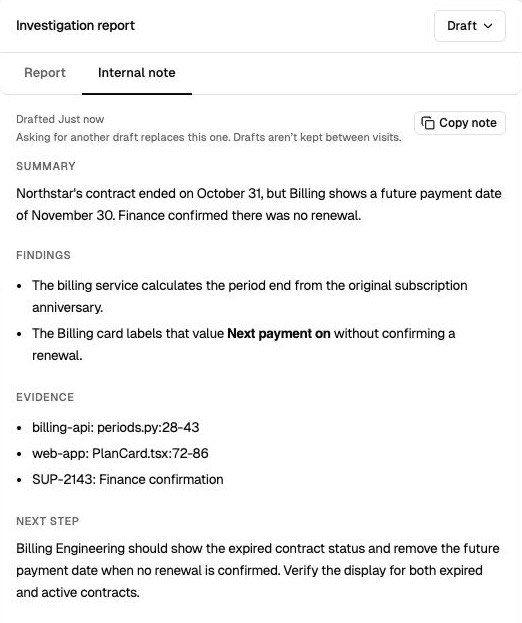
Review the generated internal note before copying it into Jira. View full size.
For an automated Jira investigation, send a message to start your private continuation before requesting a draft. Answers provides responses and summaries directly in the conversation.
Review before copying
- Open the source evidence and confirm that the explanation applies to the reported version and environment.
- Separate a confirmed finding from a likely cause that still needs checking.
- Remove internal details from customer-facing text and check any suggested workaround.
- Use Copy note, Copy handoff, or Copy reply, then review the text in its destination before sending it.
Drafts are created from the latest evidence in your investigation. A draft tab is a working view and does not persist between sessions. Request a new draft whenever you are ready to share findings.
Direct posting to Jira is coming soon. For now, use the copy controls to move reviewed findings and drafts into the ticket.
Choose a next action
Use the findings to resolve the issue, ask the customer for more information, or create an engineering task through your normal Jira workflow. Include the evidence and open questions so the next person can continue without reconstructing the investigation.