
Connect the repositories Driver should read through Settings > Integrations. Basic Codebase Context provides source access and search once connected. Advanced Codebase Context adds prepared maps, relationships, impact, and history.
Driver supports GitHub, GitLab, Bitbucket Cloud, Bitbucket Data Center, and Azure DevOps.
GitHub
Open Settings > Integrations > GitHub, configure the Driver GitHub app, and select the repositories it may read. A GitHub organization administrator may need to approve installation or repository access. The app handles webhook delivery for source updates.
After granting GitHub access, choose which repositories to connect in Driver. The repository picker shows your current allowance. If a repository is missing, use Edit GitHub access to review which repositories the app may read.
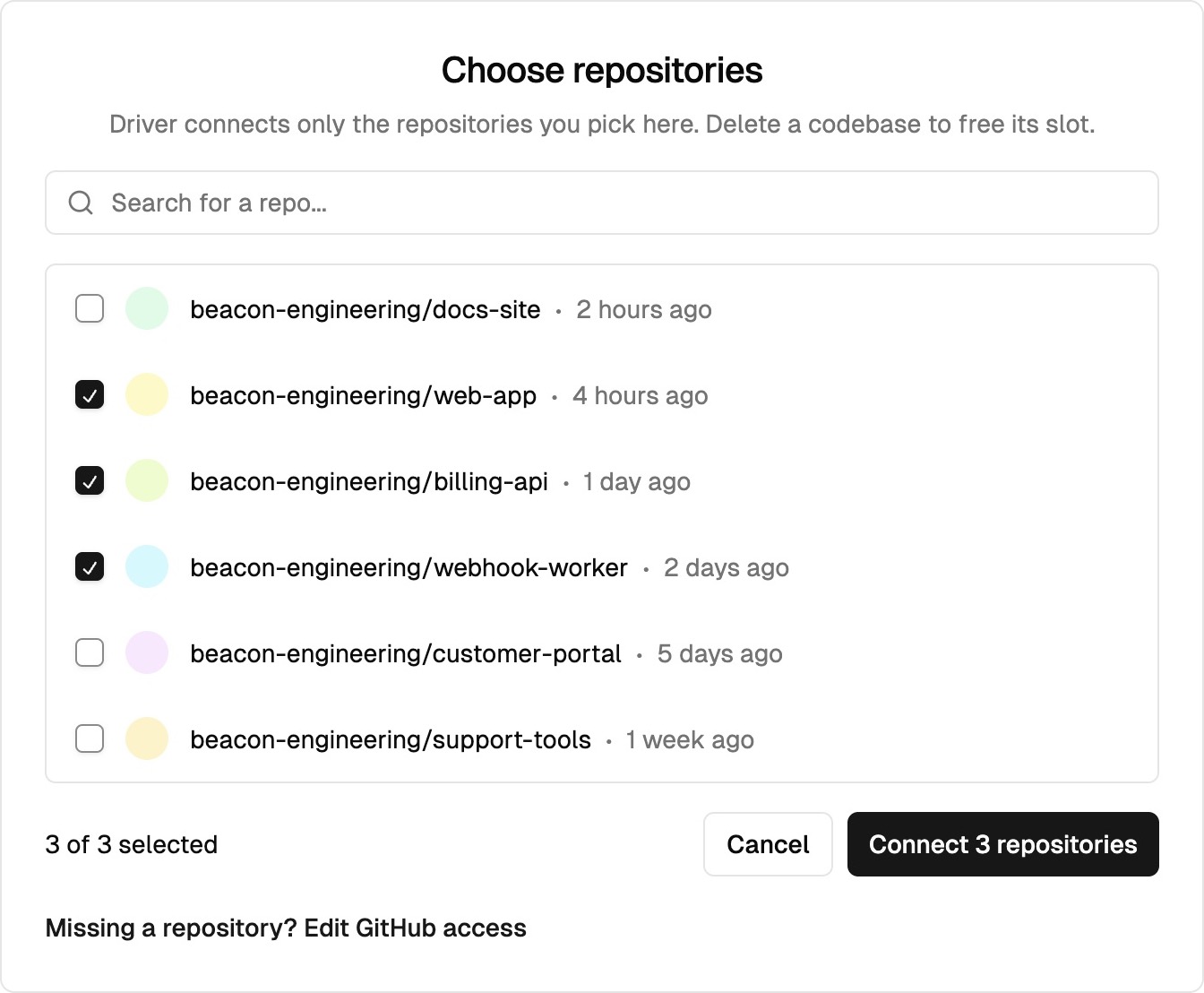
Select the repositories Driver should connect. The picker shows your current allowance. View full size.
Return to Sources to check the connected repositories. Connection and preparation are distinct: Basic uses the connected source, while Advanced tools need their generated context to be ready.
GitLab, Bitbucket, and Azure DevOps
Choose the host under Settings > Integrations, provide the instance details and access token requested by its setup flow, and select the repositories Driver may read. For a self-managed instance, supply its URL. Complete the automatic-update step so source changes reach Driver.
Driver displays the webhook values for your connection during setup. To return to them later, open the connection’s menu and choose Automatic Updates. Copy the URL, secret token, and any custom headers shown there into your code host’s webhook configuration. You can also run driver integration webhook <integration> to print the webhook address, headers, and secret for the connection.
GitLab
GitLab supports Cloud and Self-Managed instances. Choose your instance type in Driver, supply the instance URL when self-managed, and add a Group Access Token.
- In GitLab, open the group, project, or repository’s Settings > Webhooks and create a webhook.
- Copy the URL, Secret Token, and custom headers from Driver’s SCM setup.
- Enable Push events and Project or group access token events.
- Select Test > Push events and check for a 202 response.
Bitbucket Cloud
Use a workspace, project, or repository Access Token, depending on the repositories Driver needs to read. Add the token in Driver, then complete the manual webhook setup:
- In Bitbucket, open Repository settings > Webhooks and create a webhook.
- Copy the URL and Secret Token from Driver’s SCM setup.
- Configure the webhook to trigger on Push events.
Bitbucket Data Center
Add the connection and its Access Token in Driver. In the webhook setup step, choose Automatic and enable Automatic Updates. Driver registers the webhook for that installation. If you choose Manual, create a webhook under Repository settings > Webhooks, copy the URL and Secret Token from Driver, and enable Push events.
Azure DevOps
Enter your Azure DevOps organization URL and project name in Driver, then add a Personal Access Token.
- In Azure DevOps, open the project’s Service hooks and create a webhook.
- Select Code pushed as the trigger type.
- Copy the URL and HTTP Headers from Driver’s SCM setup.
- Set Resource version to latest and test the webhook.
Source and Advanced context
Basic Codebase Context provides connected source files and search. Advanced Codebase Context prepares the Atlas, code map, relationships, impact, and history. Review the branch and preparation state before asking about changes that may be newer than the prepared context.
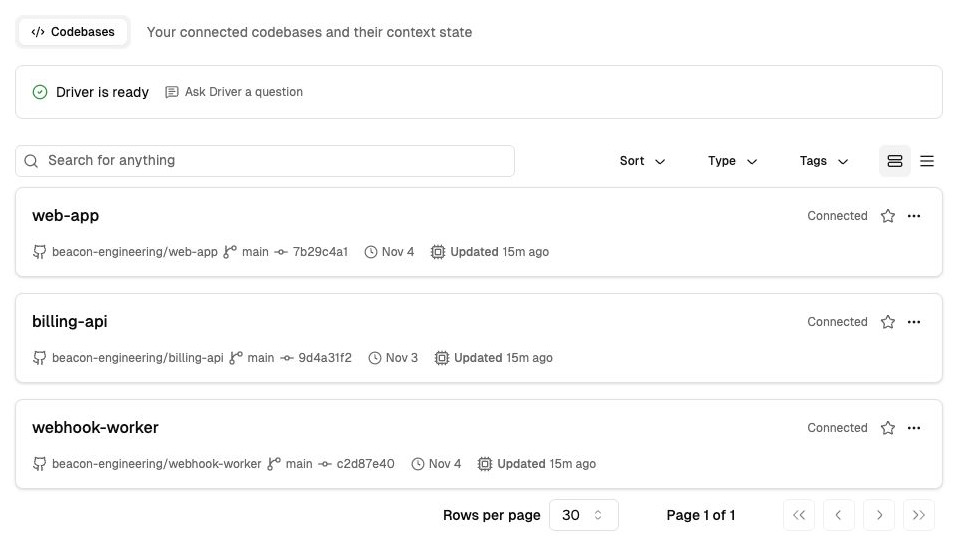
Check each repository’s connection status, branch, and last update. View full size.
Source updates use the connection’s webhook configuration. Advanced preparation and updates consume account credits. Use Codebase Context to compare the tools and the CLI for terminal-based administration.
Activate Advanced context
Contact Driver support to upgrade to Advanced Codebase Context. Support enables Advanced as part of your upgrade. Once enabled, allow context preparation to finish before using the Atlas, relationships, and other prepared views.
Codebase settings
Open the codebase from Sources, then open Codebase Settings. A codebase administrator can choose the branches to update and how often Advanced context refreshes.
Choose branches
Open Branch filter and select an update mode:
| Update mode | How to configure it |
|---|---|
| Update all branches | Add regular expressions under Exception Patterns to exclude branches from updates. For example, ^feature/ excludes branches beginning with feature/. |
| Update only the default branch | Add regular expressions under Exception Patterns to include additional branches. For example, ^release/ includes branches beginning with release/. |
The default branch is always updated. Patterns are case-sensitive and match from the start of the branch name. Use $ at the end to match a complete name, such as ^staging$. Choose Add pattern for another expression, then Save. Use Revert to discard unsaved changes.
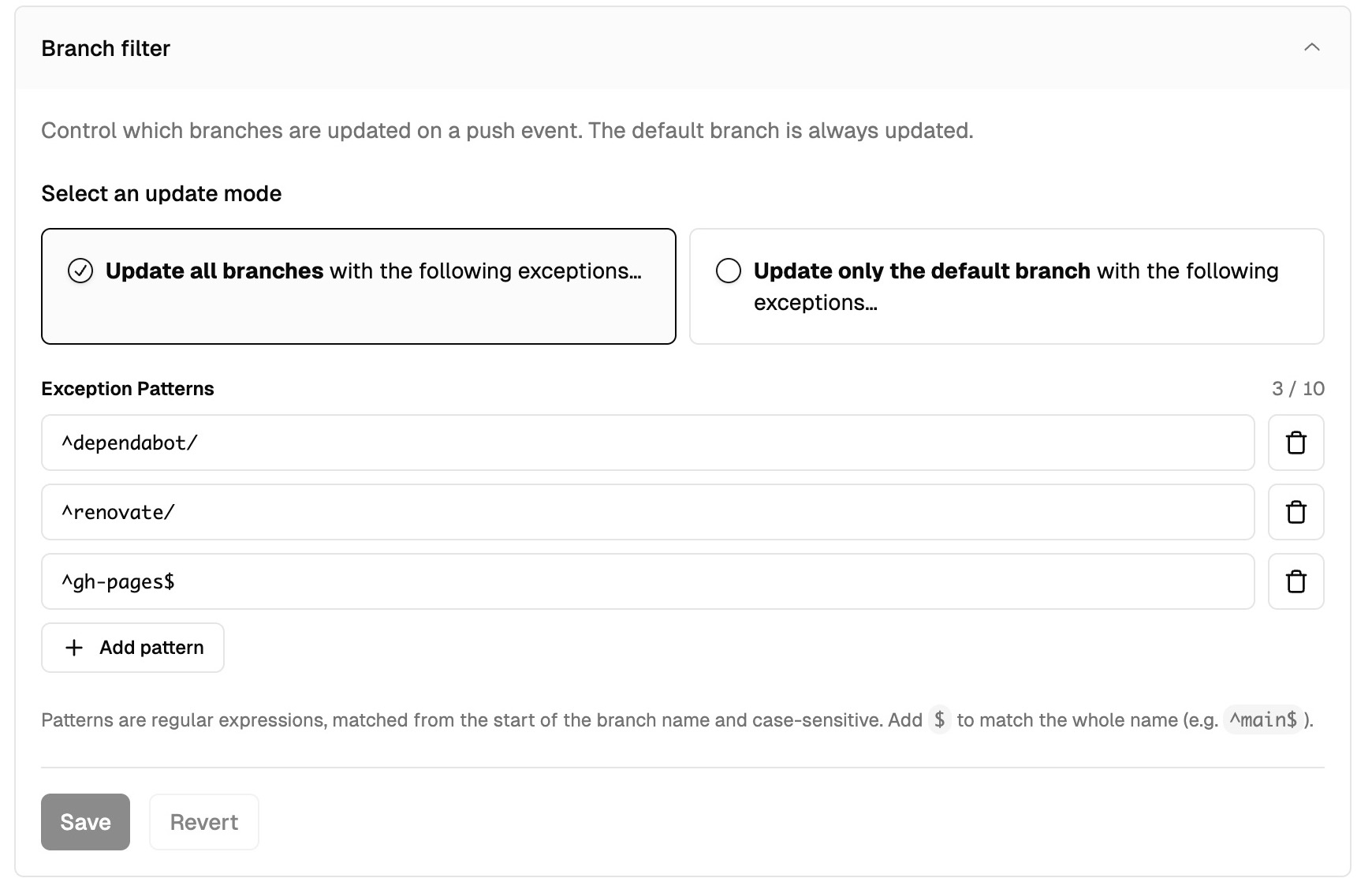
Choose an update mode, add branch patterns, and save the filter. View full size.
Set the refresh frequency
Open Documentation Updates in Codebase Settings to choose how often pushed changes can refresh Advanced context:
| Frequency | Behavior |
|---|---|
| All pushes trigger updates | Refresh after each push to an included branch. |
| One, two, or four hours | Use the selected minimum interval between updates. |
| One or three days | Use the selected minimum interval between updates. |
| One week, one fortnight, or four weeks | Use the selected minimum interval between updates. |
| Never update | Turn off automatic refresh. |
Updates are triggered by pushes and use the selected minimum interval. Choose a frequency that keeps context current for your team’s work while accounting for credit usage. Basic source updates use the Codebase Updates control on the same page.
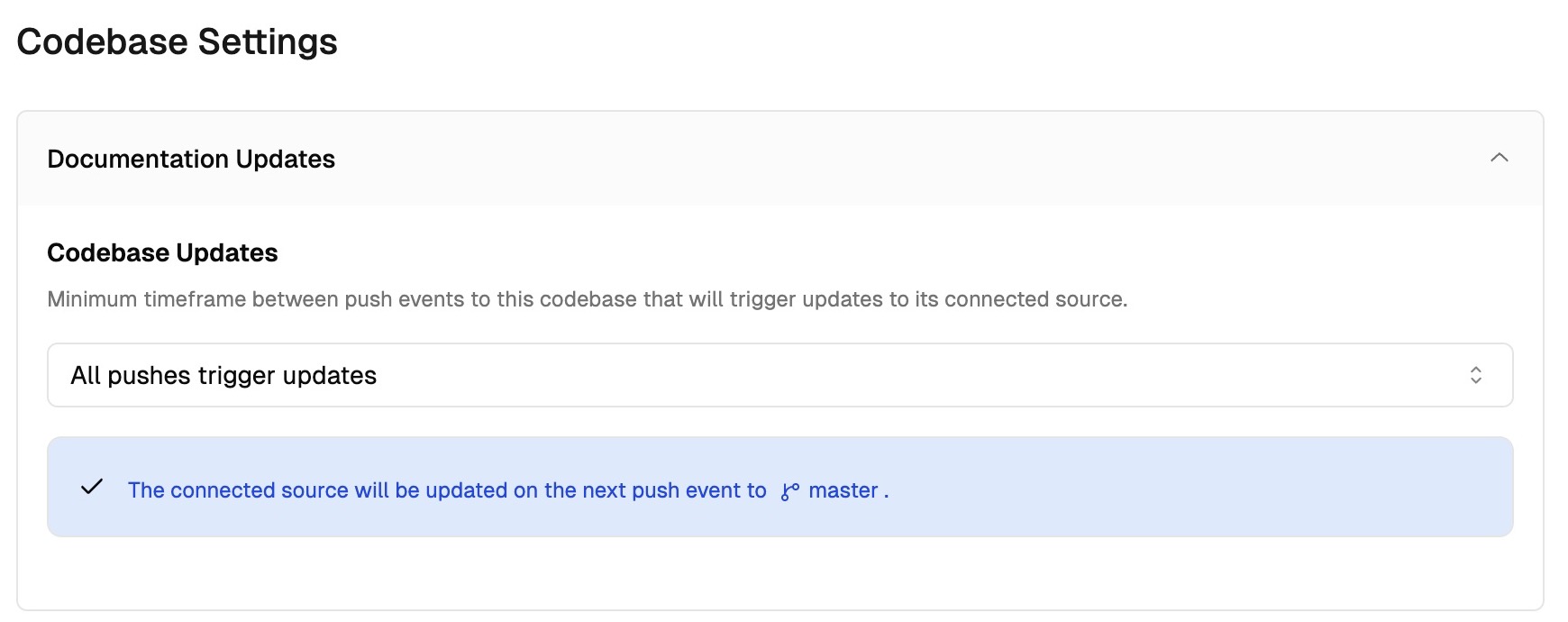
Codebase Updates controls how often pushes refresh the connected source. View full size.
Scope and troubleshooting
Select the repositories Driver should read and review source permissions under Settings > Access Control > Sources. Repository access does not automatically grant access to every project in your code host.
If a repository fails to connect, check its status in Sources, the app or token’s repository permissions, and the host’s webhook configuration. For a self-managed host, confirm that Driver can reach the instance. Reconnect or ask your administrator to correct the connection as appropriate.
Check the result
Ask about a known code path or recent change and open the cited file. Confirm the repository, branch, and version. For Advanced context, also check that the prepared map describes the expected subsystem.