
Connect a codebase, use Answers to understand how your software works, and check the source evidence. An organization administrator sets up source connections; invited teammates can start from the connected codebases they can access.
Connect your code
- Sign in to Driver and select your organization.
- For a new organization, choose Connect via GitHub on the setup screen. You can also configure your code host through Settings > Integrations. Install the Driver app and choose the repositories to connect. The codebase connection guide covers the supported hosts.
- Open Sources to check the connection. Once the source is connected and the investigation composer is available, ask your first question.
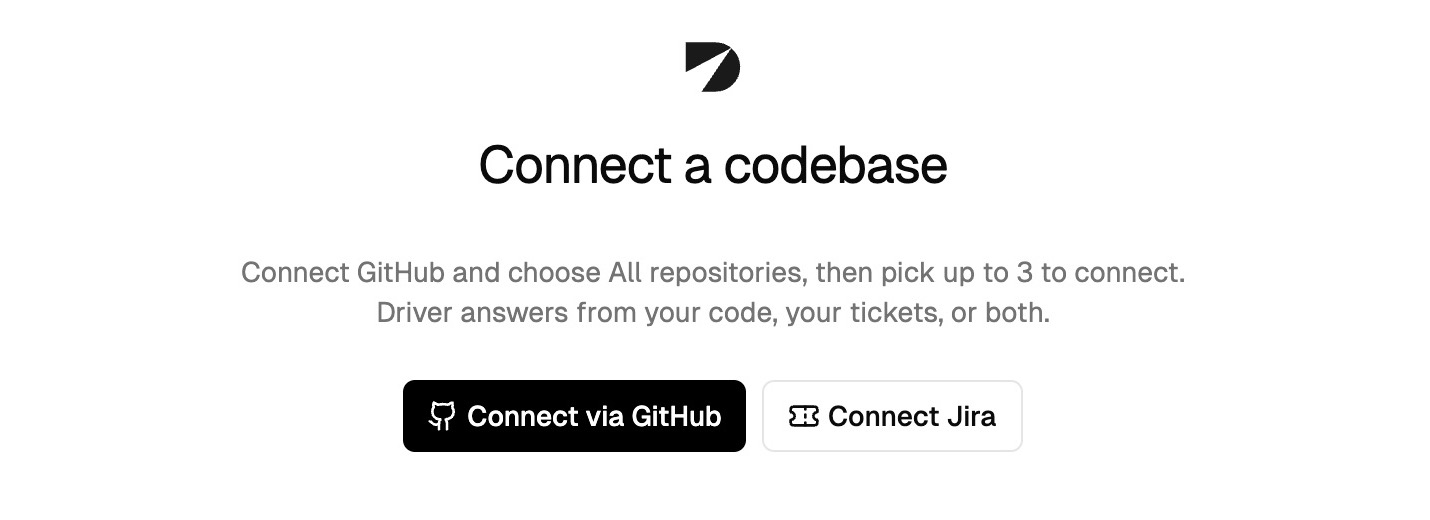
Choose Connect via GitHub to start connecting your code. View full size.
Basic Codebase Context makes connected source available for search. Advanced Codebase Context adds prepared maps and relationships after processing. The context comparison explains which capabilities are available in each.
Ask about your code
Open Investigations and name the codebase and behavior you want to understand. For example:
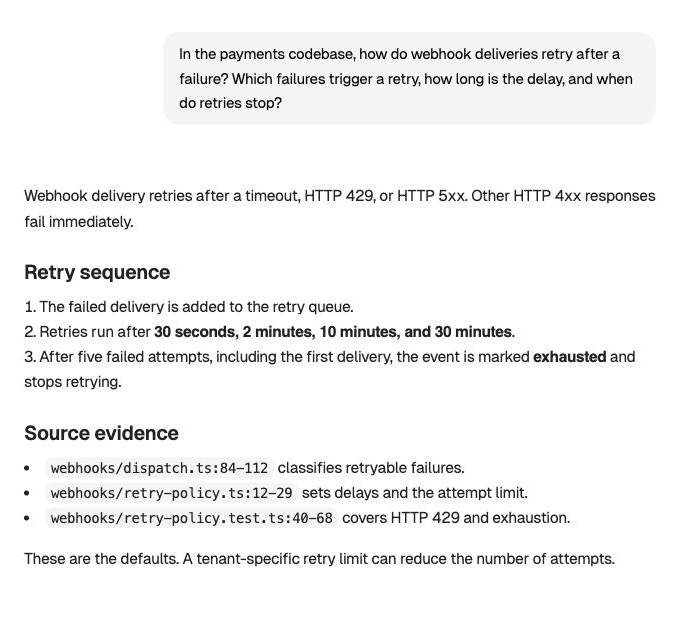
Check the code and test references behind the answer. View full size.
Read the explanation, then open its source citations. Check the branch or version, the code path, and any stated uncertainty. Ask a follow-up such as: “What happens when the endpoint returns HTTP 429?” or “Can tenant configuration change the retry policy?”
Use Your first investigation for more detail on reviewing and continuing the answer.
Add support ticket investigations
Connect Jira to combine customer reports and ticket history with code evidence. Turn on Automatic triage for a project to investigate newly created tickets and post the automated findings there.
To investigate an existing ticket, open Investigations and paste its Jira ticket ID or URL.
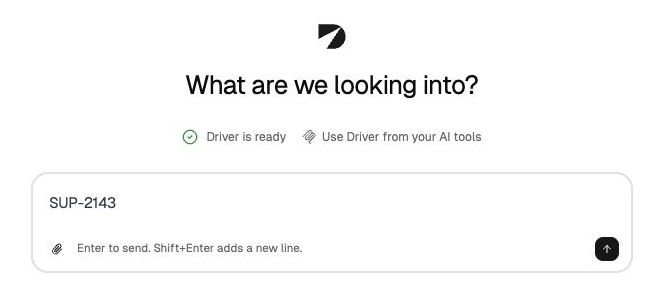
Paste a Jira ticket ID to start from its existing context. View full size.
Invite your team so teammates can use the connected sources and pick up automated investigations in their own private conversations.